
The Vinoshipper POS has a new look, built on Apple's iOS 26 Liquid Glass design. Every feature works the way it always has, and the workflows you've built around the app haven't changed. What's different is the layout: a few items have moved, and you've got a new way to navigate that gives you more flexibility while you work.
These updates apply to devices running iOS 26, including iPhone. If your device is on iOS 16-18, your app will look the same as it always has, and we'll continue to develop for both versions.
This guide walks through each change with side-by-side comparisons of the old and new layout. Save it, share it with your tasting room team, and come back whenever you need a reference.
The new layout at a glance
Here's the new POS mid-transaction. The navigation now runs across the top of the screen or docks to the left (your choice), the product grid takes up more room, and a new Tab Summary at the top of any open tab gives you a summary of the tab details. Everything else, the buttons, the flow, the fields you use every day, works the same as before.
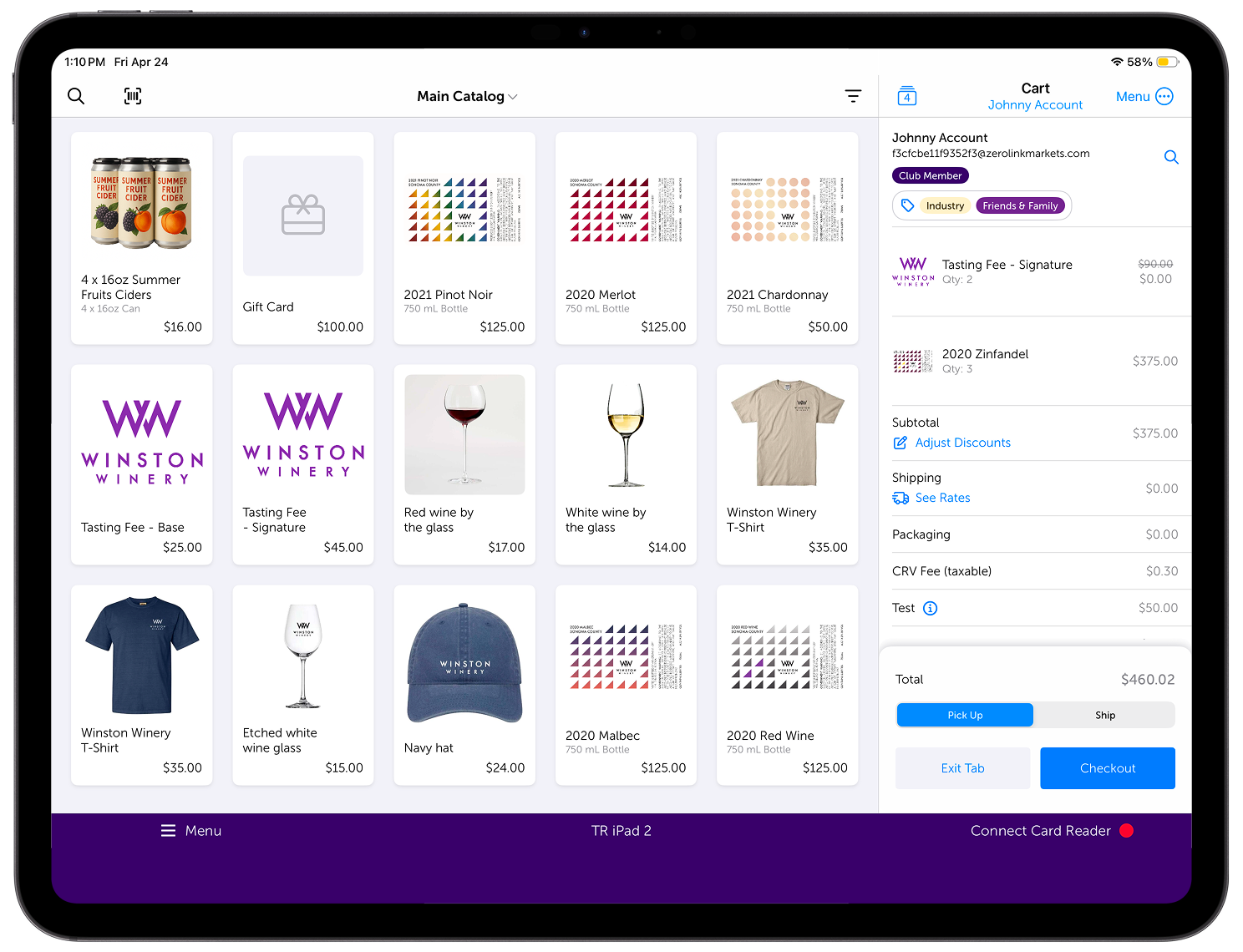
iOS 16-18
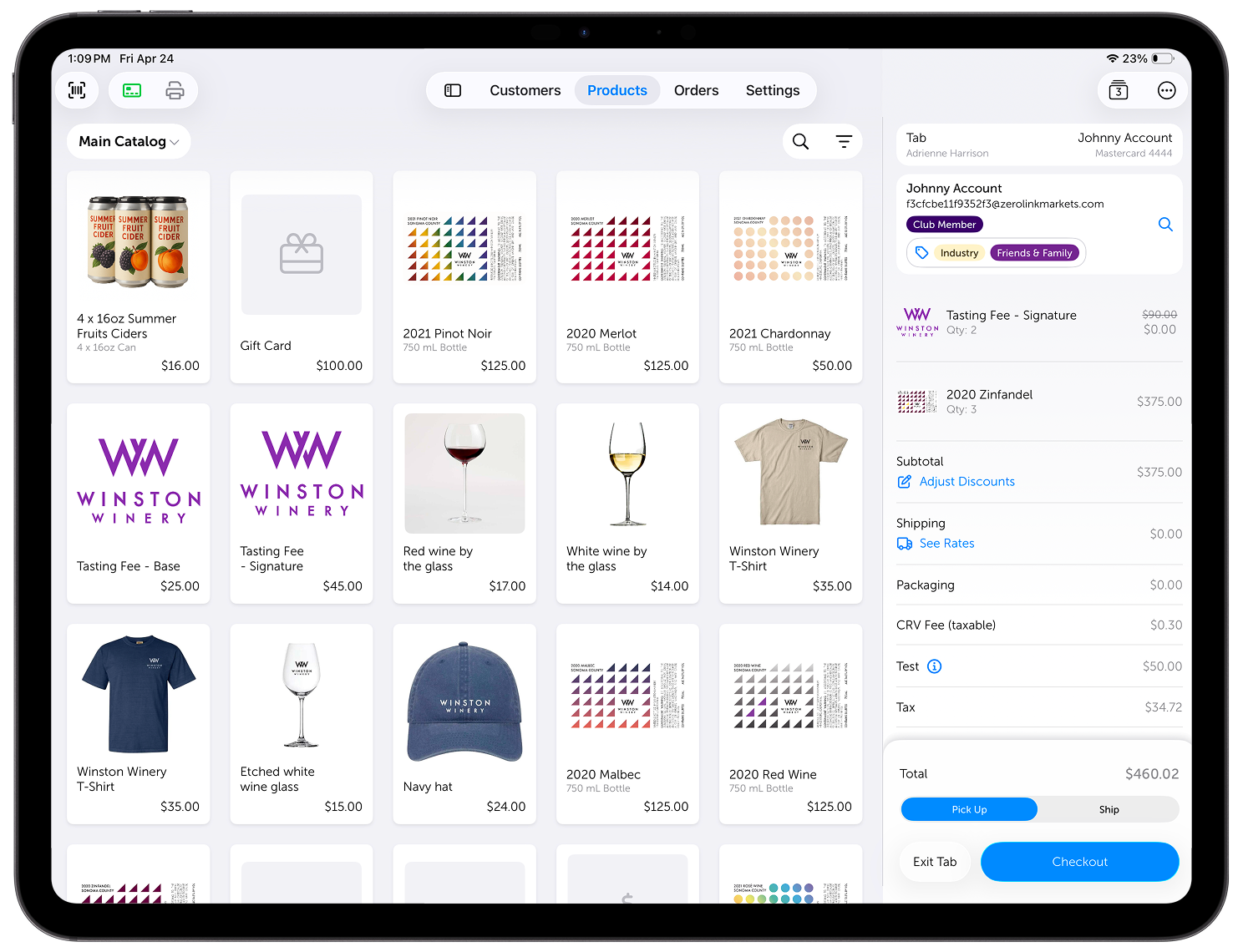
iOS 26
Navigation
This is the biggest change, and it's the one most producers will feel first. The iOS 16-18 menu slid out from the left and covered the rest of the screen while it was open. The new menu gives you two options, and you can switch between them whenever you want. Either way, you keep full use of the screen while the menu is open.
Top navigation: Customers, products, orders, and settings sit across the top of the screen. Tap any one to jump between views. The rest of the screen stays fully usable, so you can keep a customer's order visible while you check inventory or pull up another customer.
Side navigation: Dock the menu to the left and it stays visible alongside the rest of the app, so you can navigate and work at the same time.
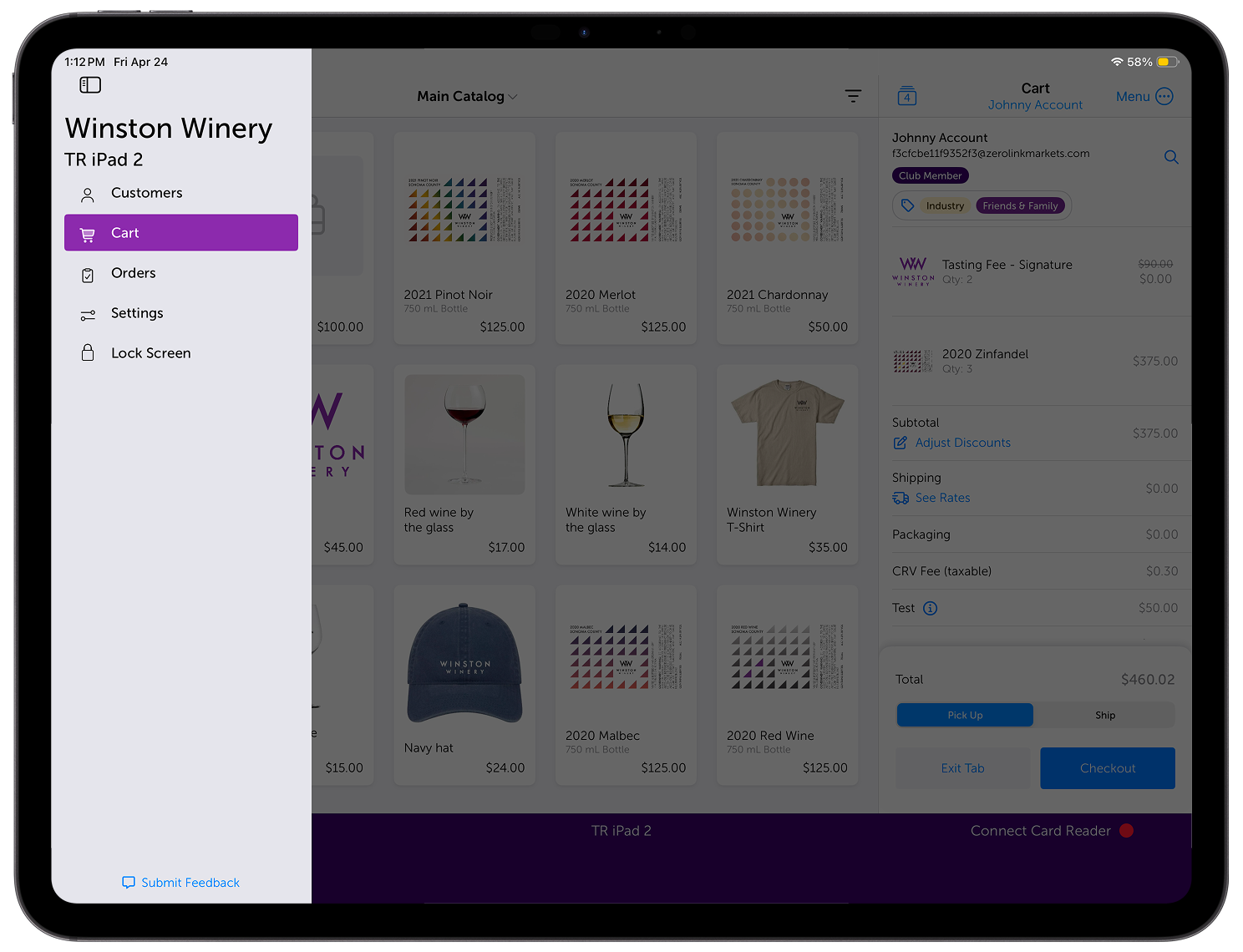
iOS 16-18
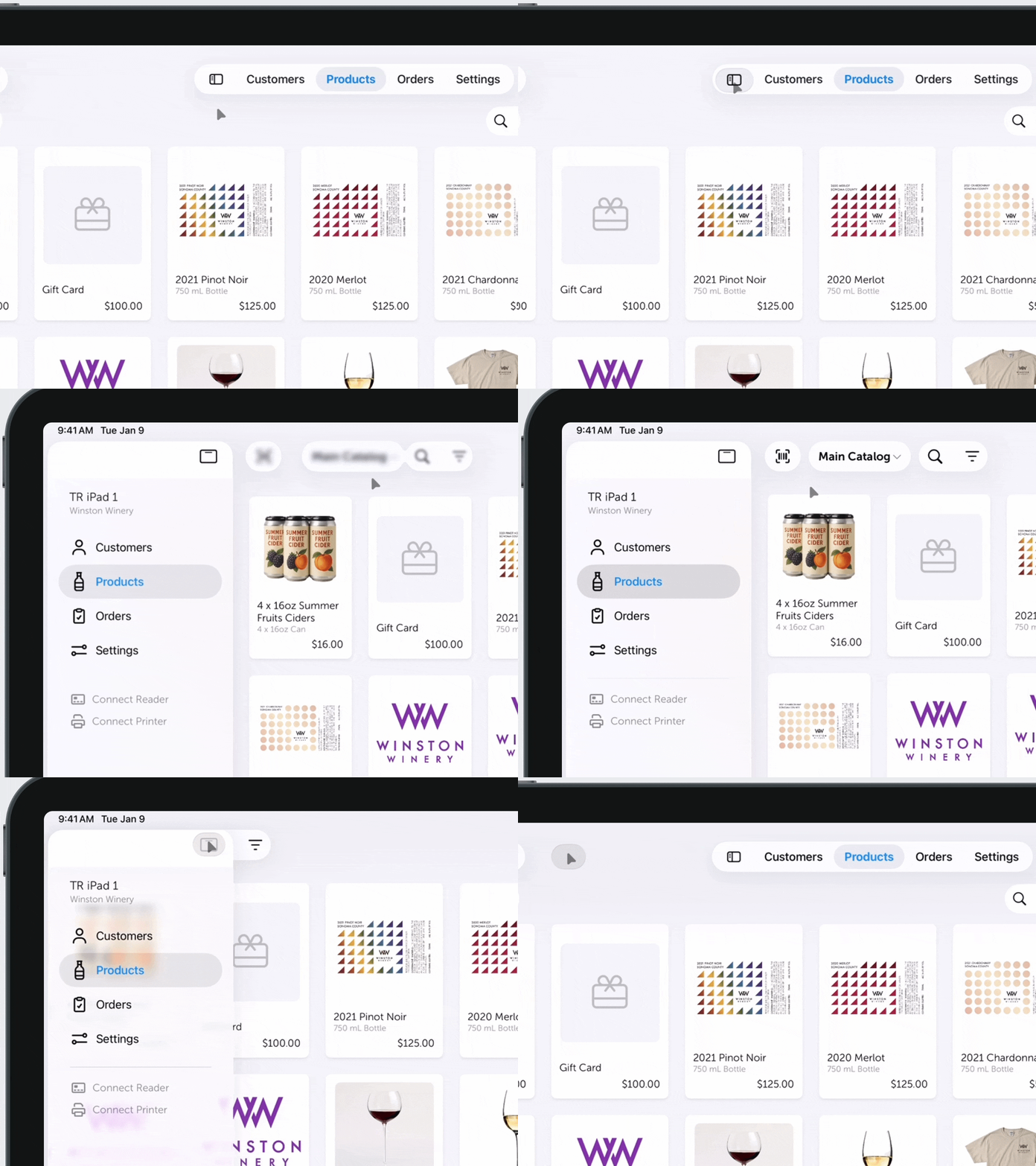
iOS 26
Products
(Previously Cart)
Search and filter
Search and filter now sit next to each other, so you can narrow your view in one motion. Their location depends on your nav choice.
Top navigation: Search and filter on the right side of the product list.
Side navigation: Search and filter at the top center, above the product list.

iOS 16-18

iOS 26: Top navigation

iOS 26: Left navigation
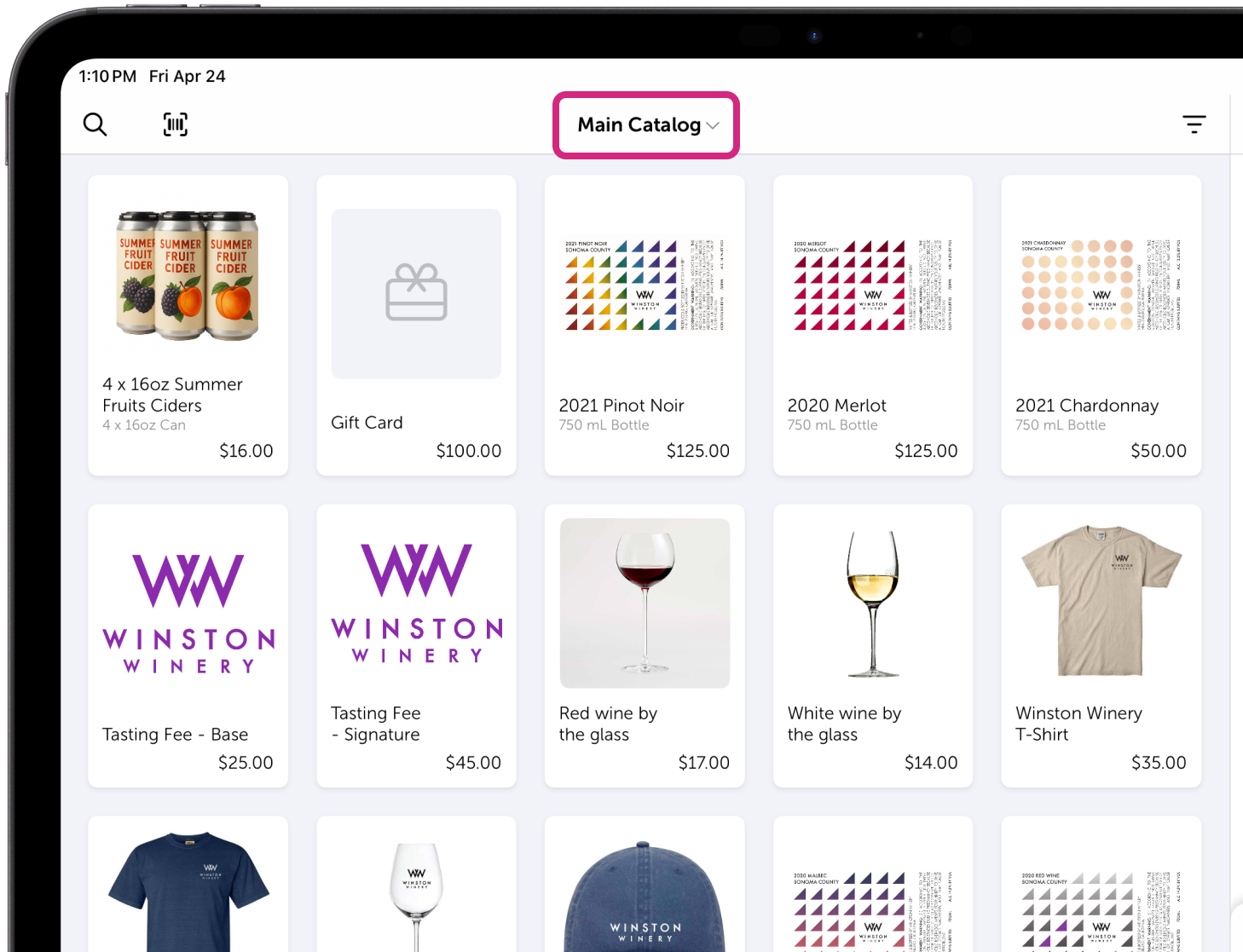
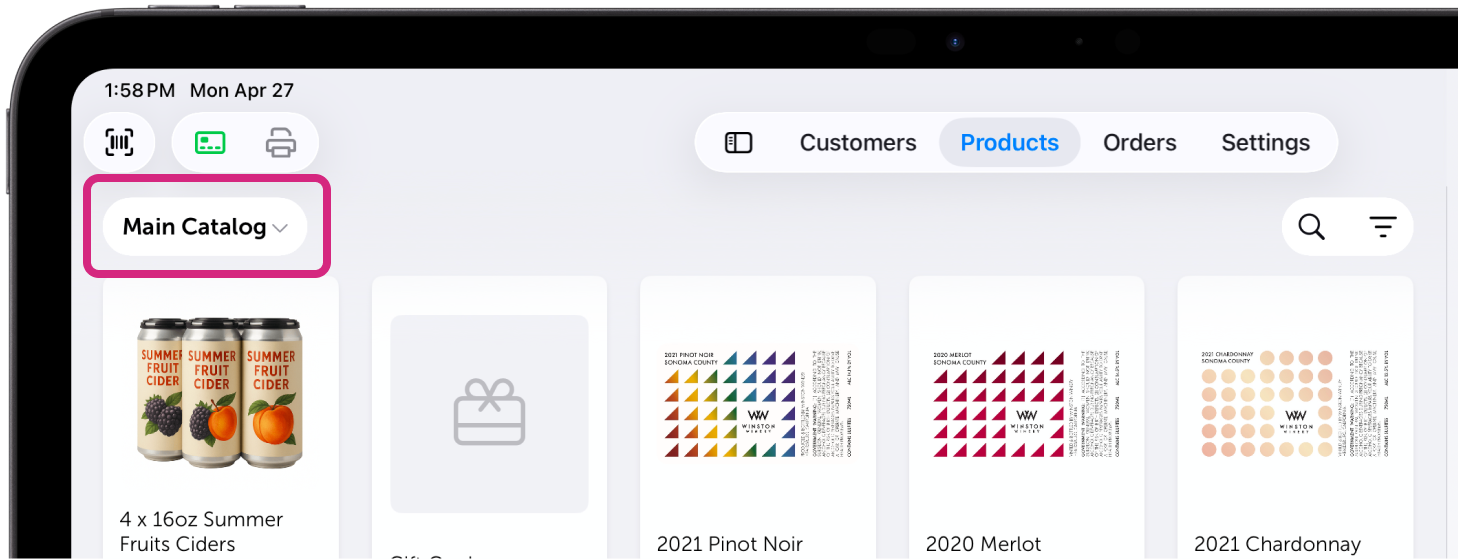
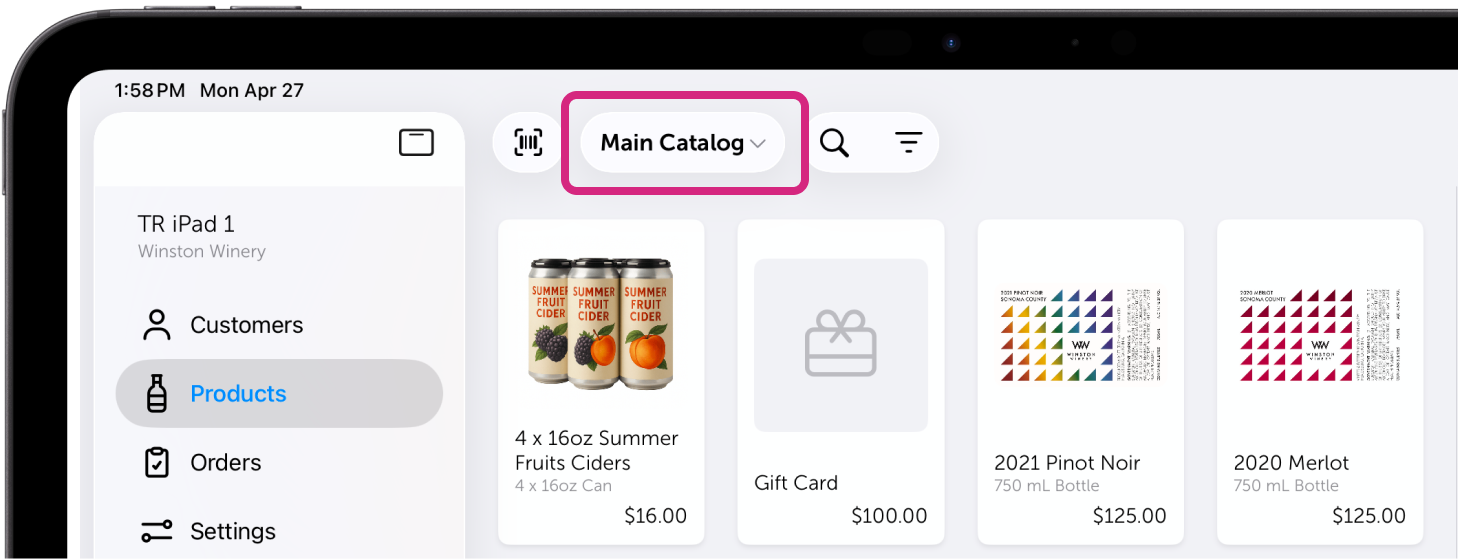
Catalog picker
Where the catalog picker sits depends on which navigation you're using. Both options keep it in your line of sight as you move between catalogs.
Top navigation: Catalog picker on the left.
Side navigation: Catalog picker in the middle.
iOS 16-18
iOS 26: Top navigation
iOS 26: Left navigation
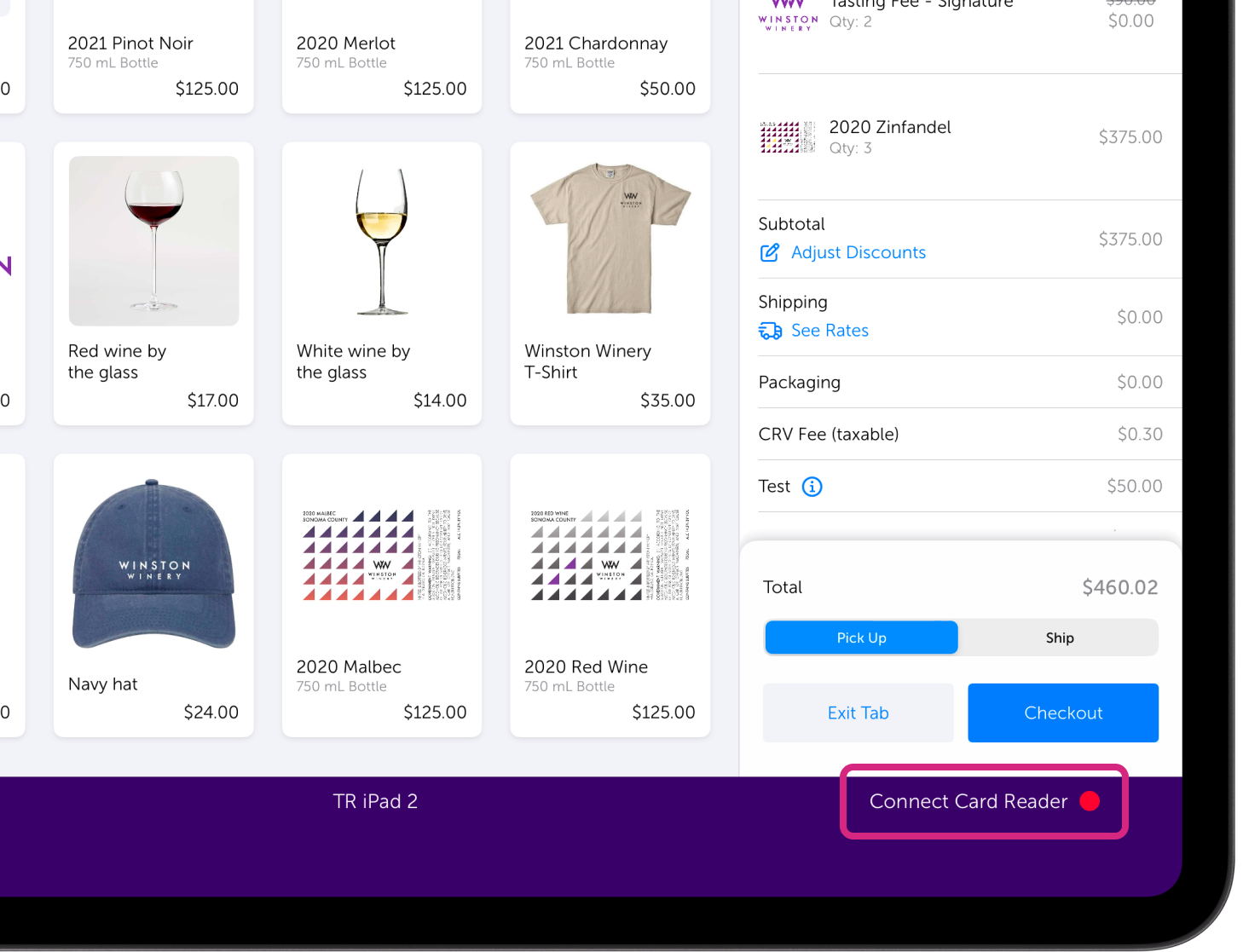
Card reader & printer status
Connecting a card reader or printer no longer means a trip to Settings. Both devices now show up as icons in your main view, and you can tap either one to start pairing.
The color tells you the status at a glance.
Green: Connected and ready to use.
Yellow: Connecting, reconnecting, or (for a card reader) running low on battery.
Red: A device is saved but not currently connected.
Grey: No device saved on this iPad or iPhone.
If you tap a grey or red icon, the pairing process starts right there.
In the side navigation, the icons also show the serial number printed on the back of the connected card reader. If you run multiple iPads or iPhones in your tasting room, this makes it easy to confirm which device is paired with which reader.
iOS 16-18
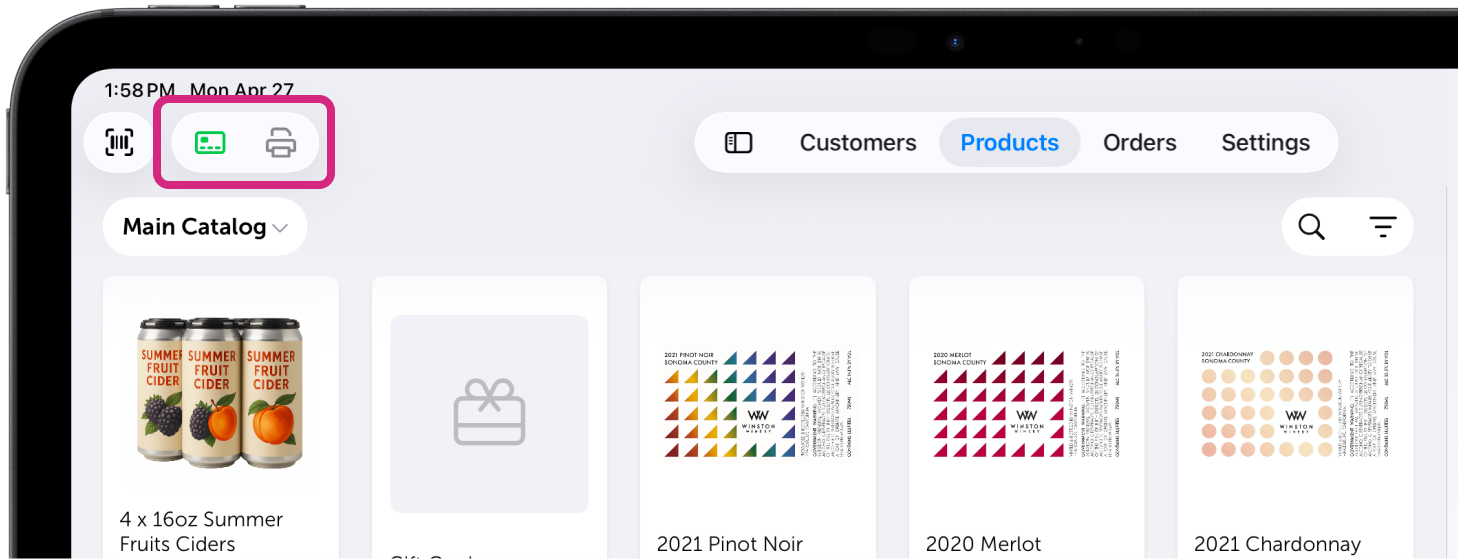
iOS 26: Top navigation
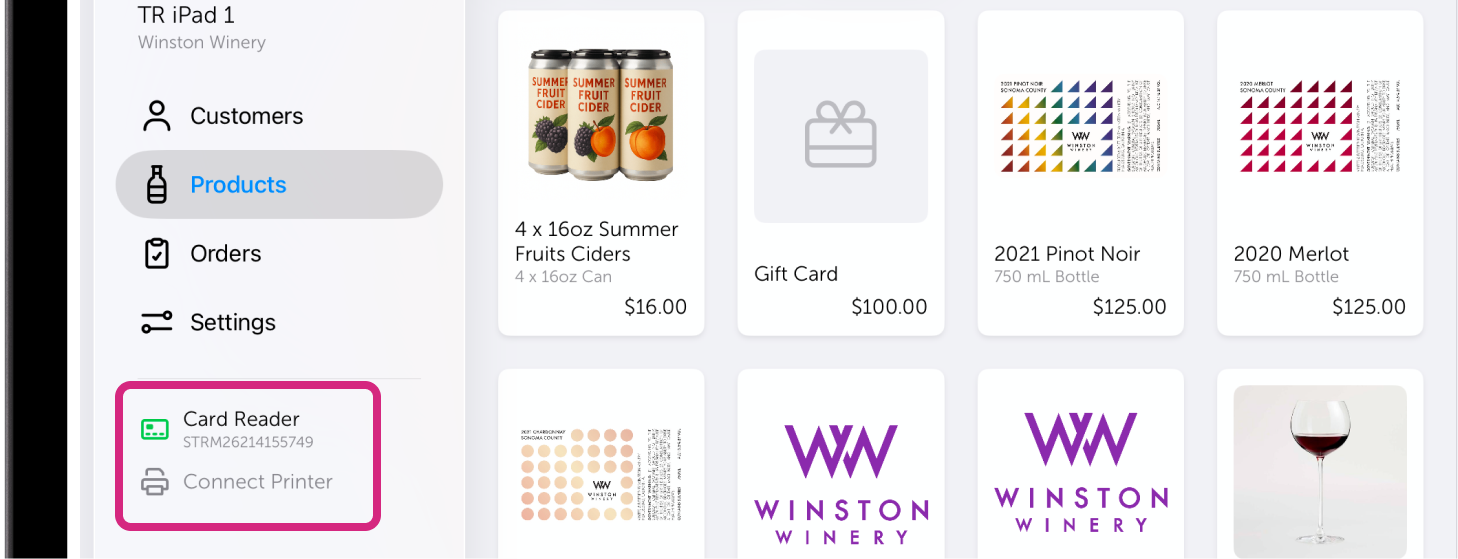
iOS 26: Left navigation
Cart & tabs
Cart menu
The cart menu now lives as an icon in the top right of the screen, giving the cart panel a cleaner header and more room for the items in the order.
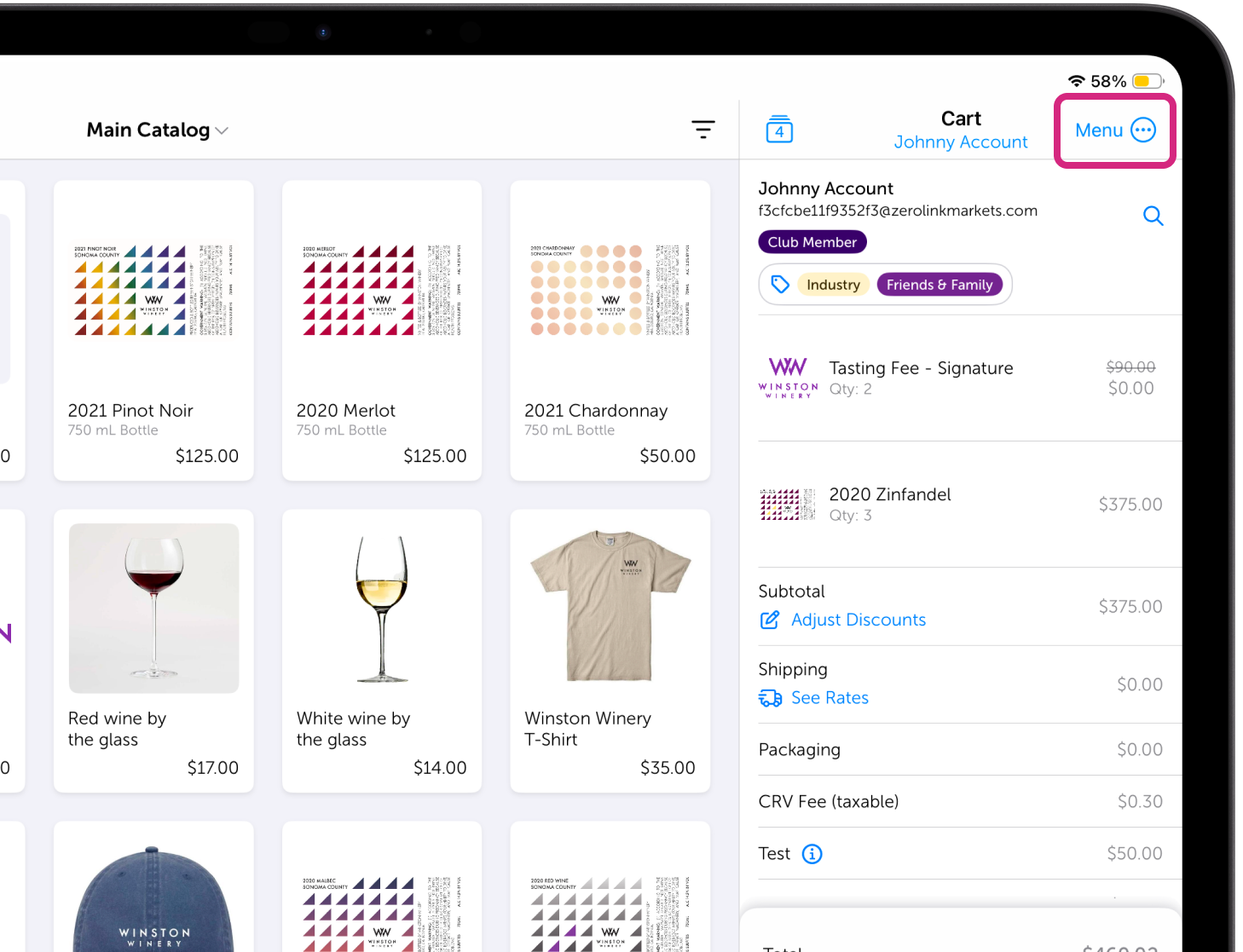
iOS 16-18
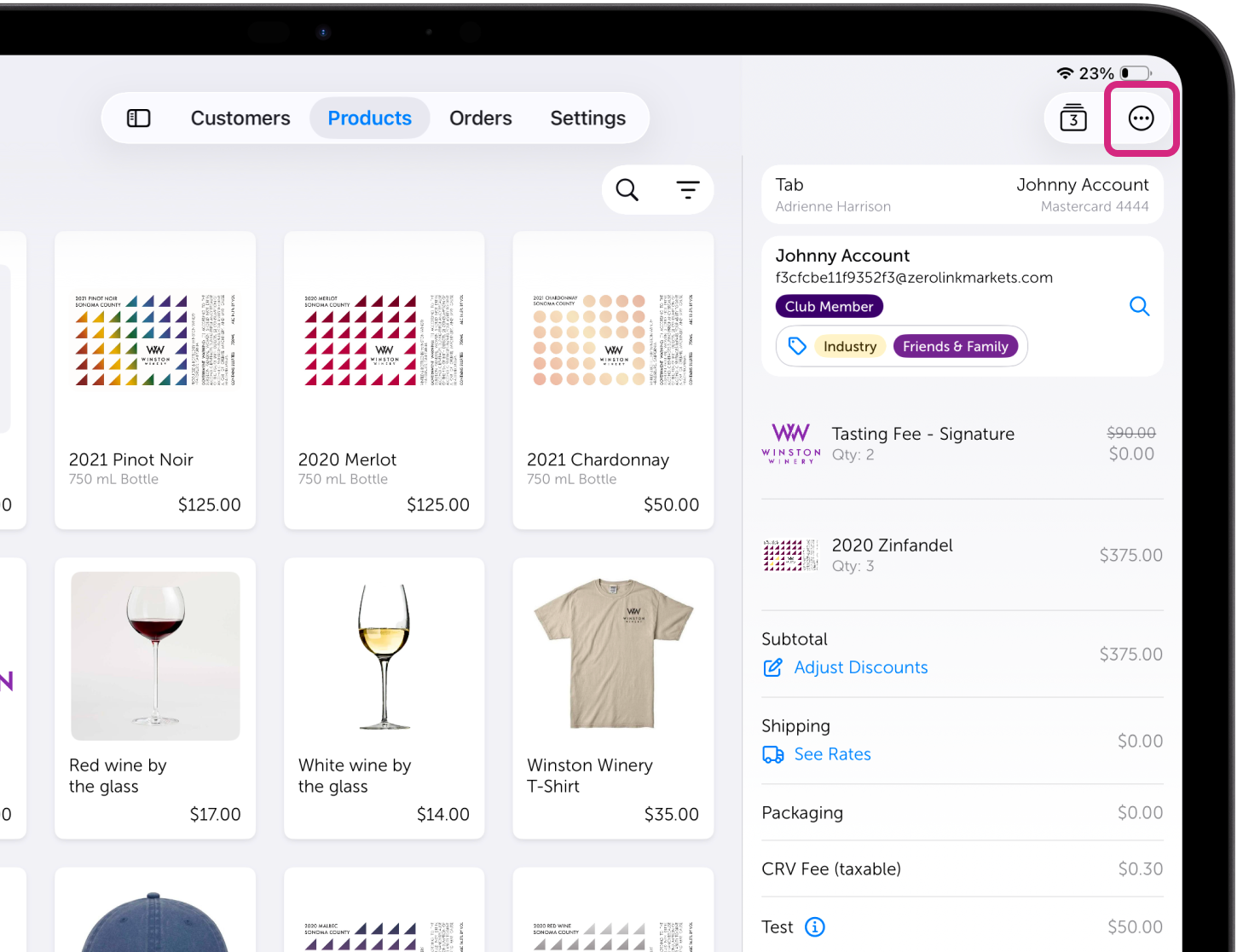
iOS 26
Tabs
The Open This Tab button now sits at the top of the new tab modal, so you can open a tab right away without scrolling past the details first.
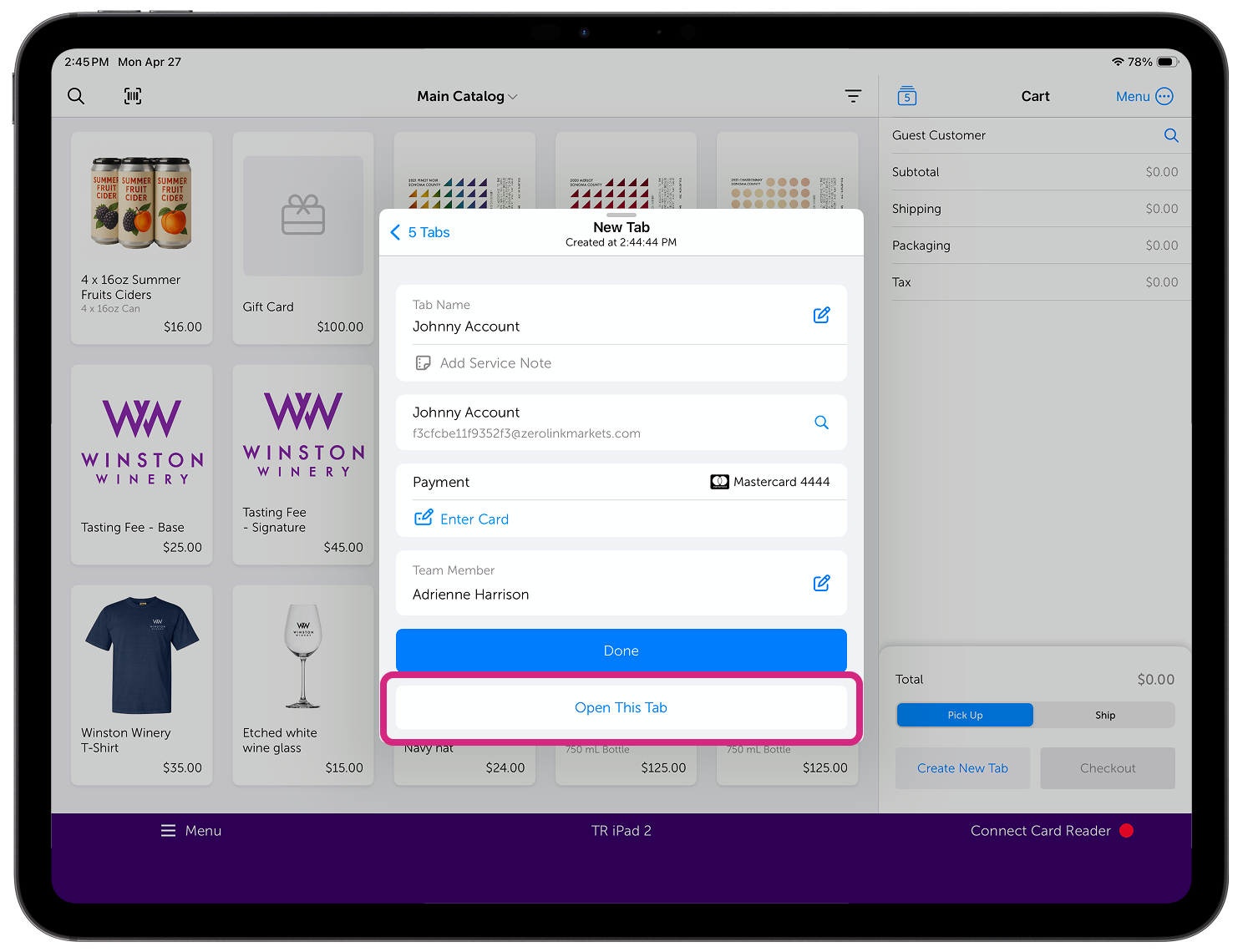
iOS 16-18
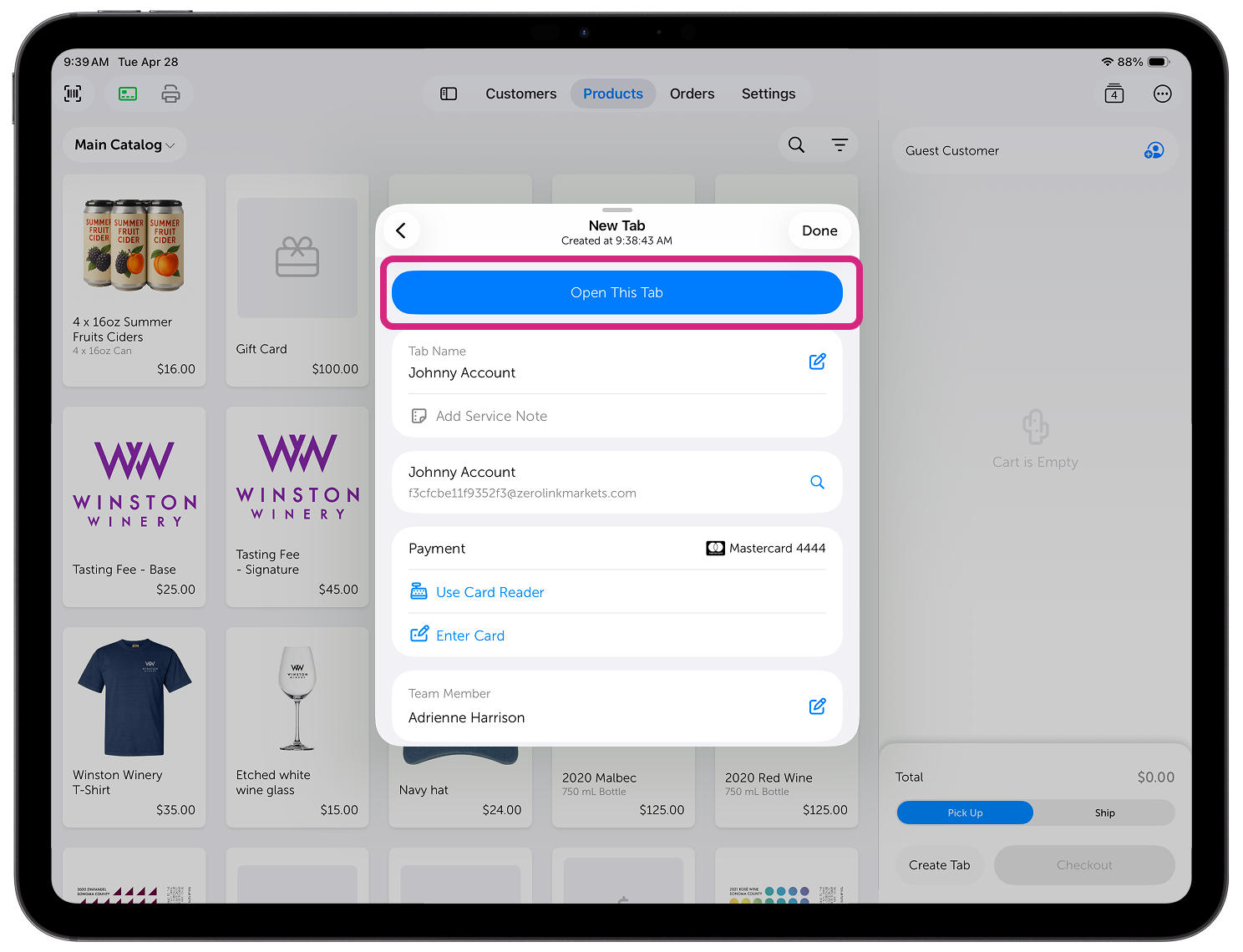
iOS 26
When a tab is open, a Tab Summary appears at the top of the cart. Tap it any time to edit the tab's name, assigned team member, notes, or other details. It shows:
The team member who owns the tab. This is set automatically by whoever was logged in when the tab was created, but this can be changed at any time.
The tab's name.
The payment status for the tab which will show one of three things:
Card details (e.g., "Mastercard 4242") if a card has been added to the tab.
"Card on File" if no card has been added to the tab, but the customer on the tab has a stored credit card.
"No Card" in all other cases.
The team member assigned to a tab is the one credited on sales and tips reports, so taking over a tab also reassigns those numbers.
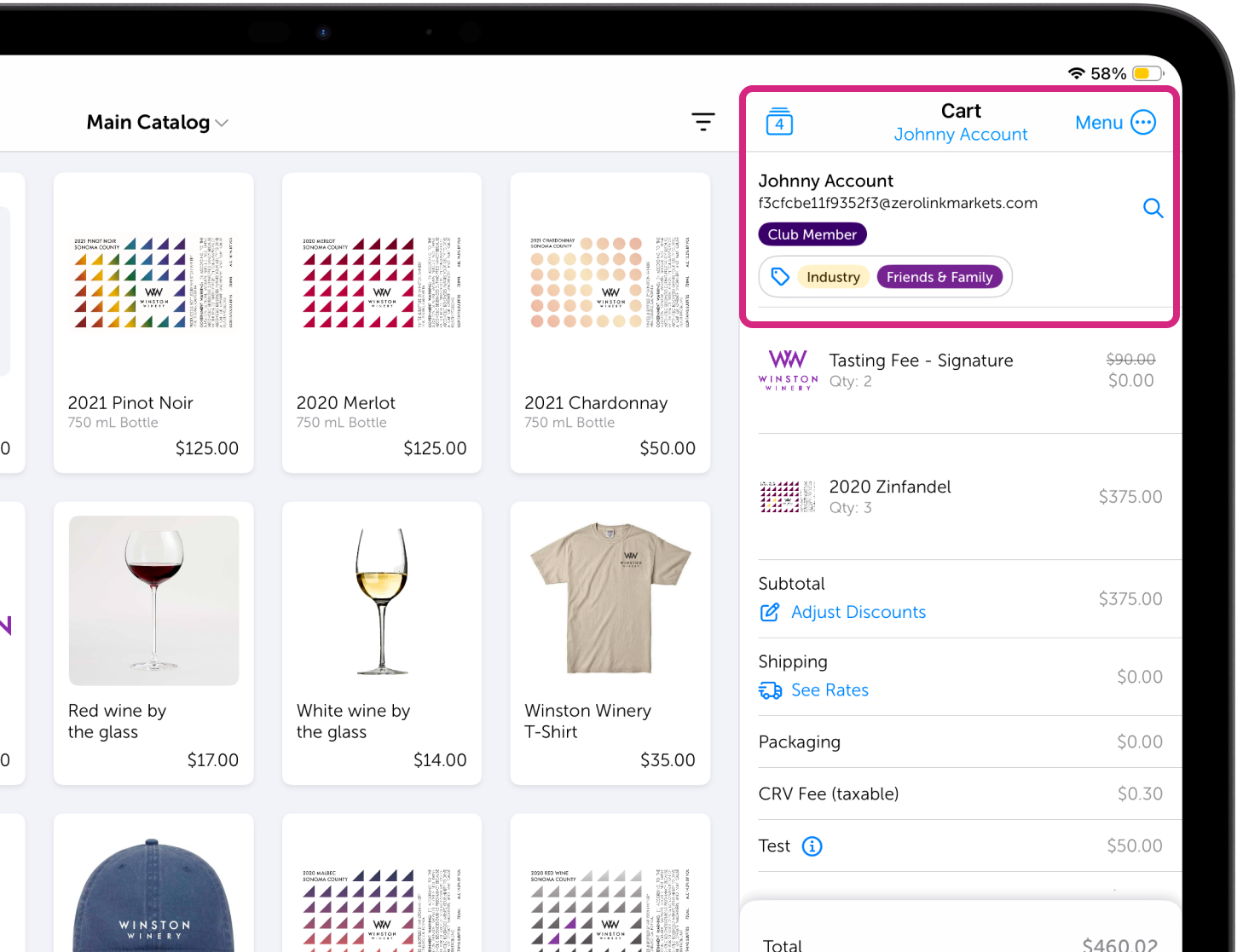
iOS 16-18
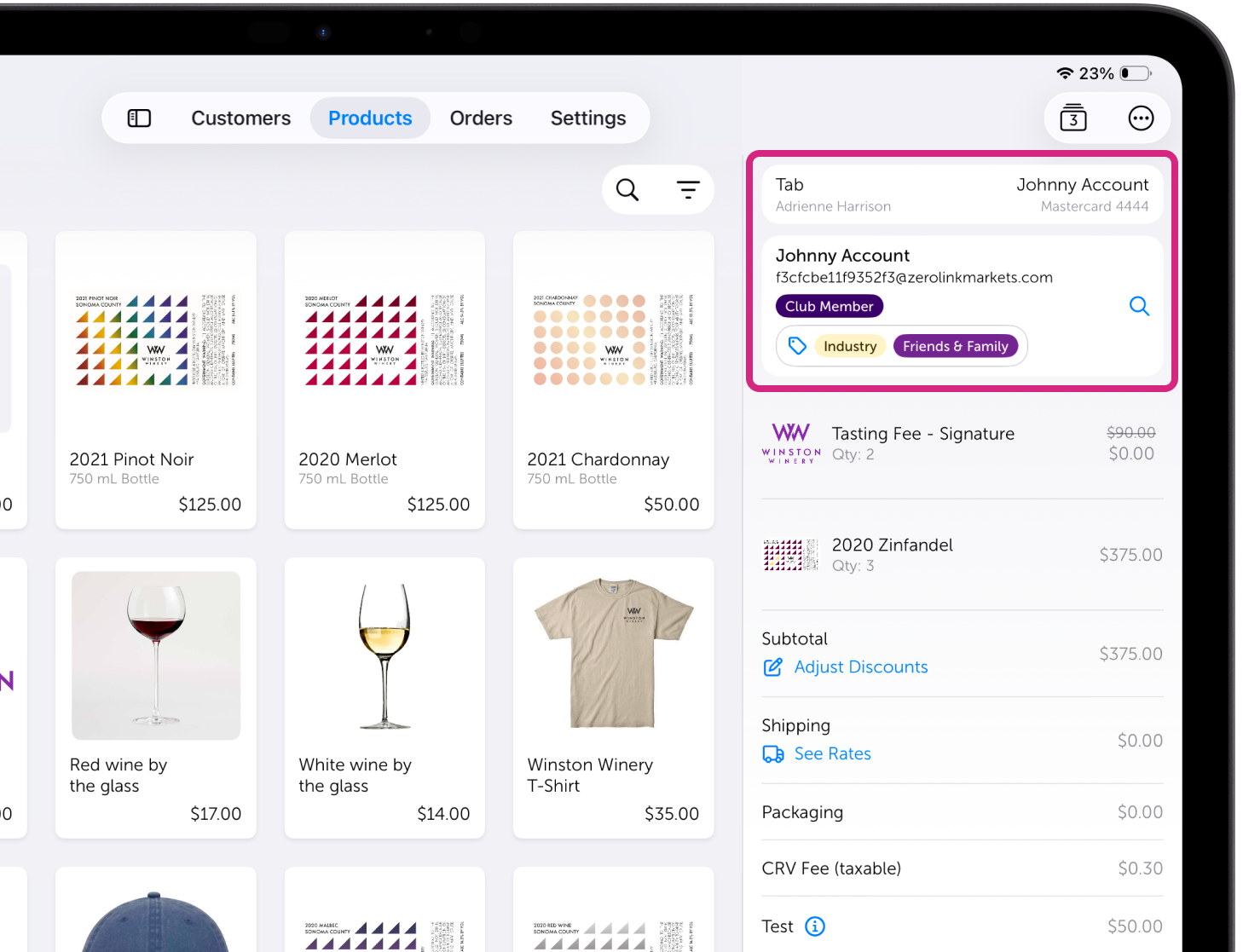
iOS 26
The features you rely on
These layout changes are designed to support the way Vinoshipper POS already works for you.
Take orders anywhere from an iPad or iPhone, with multiple devices running at the same time.
Track sales and tips by team member, with each person logged in by PIN.
Scan IDs to verify age and prefill customer details in one step.
Recognize club members at checkout and apply their discounts automatically.
Sign up new club members during a sale without leaving the order.
Process payments with a connected card reader or with Tap to Pay on iPhone.
Print or email receipts at the end of a transaction.
Update inventory in real time as products sell, across every device on your account.
Keep every tasting room sale connected to the rest of your Vinoshipper account, so online store, club, and tasting room orders all live in one place.
The new look just makes these workflows faster to move through.